Security | Threat Detection | Cyberattacks | DevSecOps | Compliance

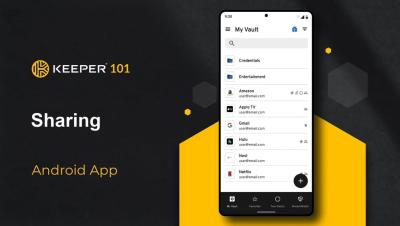
Keeper 101 - How to Create Your Keeper Account on iOS

Signing up for Keeper's iOS mobile app is easy. Simply visit the App Store on your device, search for Keeper, and install “Keeper Password Manager”. Once the download is complete, tap Open to launch Keeper. Tap Create Account to get started. Enter your email address and tap Next. You will be prompted to set and confirm a master password. Don’t forget your master password! Since this password will unlock all of your other passwords in your Keeper Vault, it is critical that you set a strong master password using upper and lowercase letters, numbers and symbols.

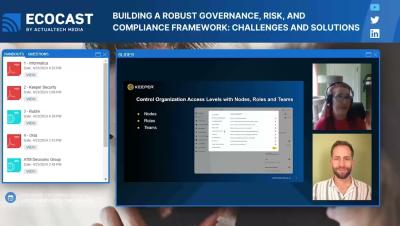
Keeper Webinar With ActualTech Media - Identity & Access Management

Keeper was invited by ActualTech Media to discuss Identity & Access Management: Keys to Success in 2024 EcoCast. Tom Cole, a solutions engineer at Keeper, dives into what makes KeeperPAM a next-gen privileged access management solution that delivers enterprise-grade password, secrets and privileged connection management in one unified platform.

What Is a Password Manager?

A password manager is a tool that allows you to store and manage your personal information, such as login credentials, credit card numbers, passport and more, in an encrypted digital vault. Some password managers allow you to store passkeys too. With a password manager, the only password you have to remember is your master password, which acts as the key to enter your secure vault.

Security Key as the Only 2FA Method

Two-Factor Authentication or “2FA” provides an extra layer of security when logging into your Keeper Vault. While support for hardware security keys for 2FA is not new to Keeper, historically, users were required to have a backup method in addition to a security key. Keeper Administrators now have the ability to enforce the use of a hardware-based security key as the only two-factor method via a role enforcement policy setting.

How to Manage Passkeys

A passkey is a cryptographic key that can be used to log in to accounts without you ever having to enter a password. Passkeys can also be used as a second form of authentication for online accounts. Passwords aren’t going away anytime soon, so if you plan to start using passkeys now or in the future investing in a password manager will allow you to create, store and use both your passkeys and passwords– simply and securely.

Passwords Suck! Going Passwordless With Passkeys, SSO and Biometrics

Passwords suck. We all hate creating passwords. We hate remembering them. They can be stolen. Billions of them are available on the Dark Web. Passkeys are more secure than passwords, however, passkeys stored with platforms like Google and Apple cannot be easily shared from one platform to another. This prevents teams from sharing access. Adrien Julienne from Keeper Security hosts Ricky White, Director of Technology and Operations at The Migus Group to learn how organizations can move to a passwordless future with passkeys, SSO and biometrics.