
How To Review A Device Photo As Image To 3D

Image Source: depositphotos.com
Hardware writeups often have one photograph and a port the photo never turned toward the lens. A reviewer can describe that port from a datasheet, or they can ask a mesh to show the hidden side so a reader can turn it. That second path is what image to 3d is for when the source is a single clear device photo, and it is a starting mesh rather than a measured scan of the board.
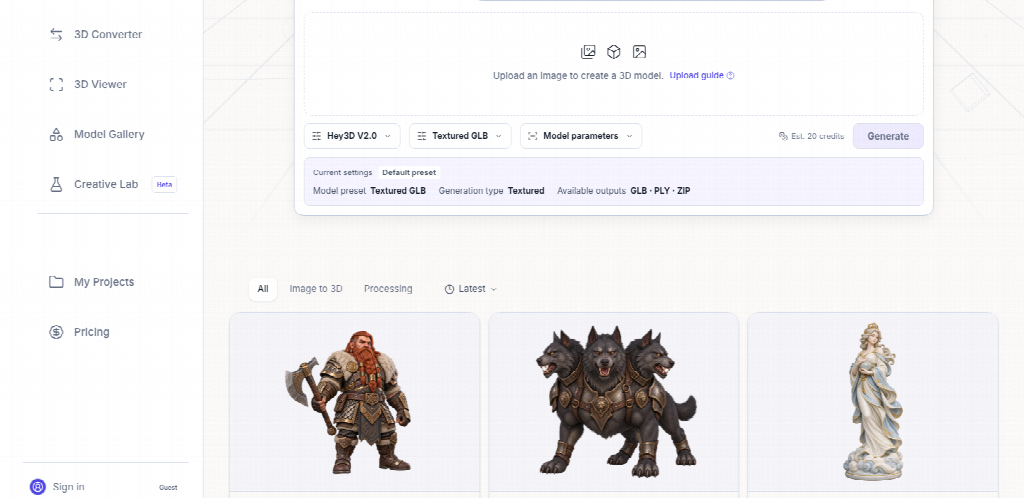
Image to 3D Studio asks for a Google sign-in before the bench opens, then shows a credit estimate before you generate. The page does not print a fixed trial purse, so the number on the screen is the one to trust. For a security note, the useful result is a file you can rotate while you write, not a claim that the mesh knows the real millimeters.
How To Prepare One Device Before You Generate
The page's own order is short. Prepare a reference, generate a draft, then inspect the mesh and decide whether the destination is a web preview, a game blockout, or a print. A device review almost always wants the middle step to stay a draft. You are checking whether the silhouette of a token, a router, or a small appliance is recognizable from the back. You are not certifying a case for manufacturing.
Pick one complete subject. The page says a picture starts more reliably from a sharp outline than from a crop or a collage. Put the device in the middle, leave space around the outline, and use even light so the color is not the same thing as the shadow. A front view or a three-quarter view is what the page recommends. A dramatic low angle makes the near edge huge and the far ports small, and the mesh will inherit that lie.
File Types The Bench Actually Accepts
Upload a JPG, PNG, or WebP. That is the list the page gives. If the only file you have is a screenshot of a tweet with three devices and a caption, it is the wrong file. One object, complete, separated from the background. The page is explicit that overlapping objects and busy scenes are images to avoid, along with heavy crops, motion blur, and surfaces that are transparent or mirror-like.
Center The Object And Leave Space Around It
A security photo often fails this before the model does. The device sits on a laptop keyboard, half under a cable, with a badge in the corner. Crop to the device or reshoot. The generator estimates surfaces the camera did not see. If the outline is tangled with another object, the estimate has nothing clean to follow, and the back of the mesh becomes a blend of both things.
Skip Glass Mirrors And A Busy Desk
Glossy black plastic and a glass front are the cases the page warns about. A mirror finish bakes the room into the "material." The mesh may look convincing from the original angle and wrong once you turn it. If the review depends on a port that is the same color as the shadow, add light before you upload. A larger texture later will not repair an unclear silhouette. The page says that directly.
Read The Credit Estimate Before The Mesh
Choose an available provider and read the credit estimate before generating. Image to 3D Studio puts that review in the second step on purpose. A quick draft is there so you can compare proportions before you spend more on detail. Timing is not a fixed minute count. The page says it varies with the provider, the queue, the geometry, and the texture settings, and it tells you to watch the project status instead of starting a duplicate job.
That queue note is the time cost on a review desk. Two identical jobs do not make the hidden port appear faster. They spend the estimate twice while you wait. Start one draft. If the proportions are wrong, fix the photo. Do not raise quality on a silhouette you already cannot recognize.
A Quick Draft Before A Heavier Quality
The page's advice is to begin with a draft, inspect the shape, and increase quality only after the reference produces the proportions you need. For a hardware note, proportions mean the port cluster is on the correct face and the cable side is not melted into the desk. Detail on a logo can wait. If the draft already puts the USB opening on the wrong end, more texture will decorate the error.
Rotate The Back And The Underside On Purpose
Inspection is the step reviewers skip when the front looks familiar. The page says to rotate the result and look at the back, the underside, and the thin parts. It also says to review with textures and without them, so a shading trick is not mistaken for geometry. An image to 3d model that only matches the original photo angle is not finished. The hidden side is the reason you generated it.
Thin Parts Are Where The Mesh Splits
Antennas, port doors, and rubber feet are the thin parts. The page lists open edges, intersections, and disconnected pieces as things to inspect, along with scale, origin, and polygon count. If a foot is floating or a port door is fused shut, reject that mesh for the article. A reader who turns the model will see the fusion immediately. Describe the photo instead, and say the hidden side was not clear enough to model.
What A Security Note Should Attach
Attach the mesh only when the silhouette matches the device you photographed and the hidden face does not invent a port the datasheet does not have. Image to 3D Studio is useful here because the bench makes you look at the estimate, then at the back, before you export. Export formats depend on the provider. The page names GLB, OBJ, STL, FBX, and USDZ as formats you may see, and it tells you to check the actual download list. For a web note, GLB is the convenient carrier of mesh and materials, and you still have to test how it loads.

- One device, JPG PNG or WebP, even light, full outline.
- Read the credit estimate, then run one draft.
- Turn the back and the underside with textures off.
- Reject a fused port or a foot that does not touch.
- Export only after that check, in a format the page actually offers.
When The Photo Was Never Yours To Upload
The page says to upload only source material you are allowed to use, and that rights depend on the source, the provider, the plan, and the current terms. A leaked press render or a reader's photo from a forum is the wrong input even if the mesh would look clean. Use your own bench photo of a device you can hold. Eligible accounts may receive trial credits after sign-in and verification. Review the displayed cost and the license before the file goes into a client report or a public post.
Image to 3D Studio will not measure the device for you. It will give a reviewer a rotatable draft from one honest photo, with the unseen plastic estimated and the estimate shown before you spend. If the back is nonsense, the photograph was the better figure. If the back matches the unit on the desk, the mesh can sit beside the writeup so a reader can turn the same object you turned.