
Google Slides vs PowerPoint: The Latest Detailed Comparison

Image Source: depositphotos.com
When it comes to creating presentations, two popular tools dominate the scene: Google Slides and PowerPoint. These tools are widely used by businesses, educators, and individuals to create impactful presentations. However, the question remains: which tool is the best fit for your needs? In this article, we will take a deep dive into the comparison of Google Slides vs PowerPoint, helping you make an informed decision on which tool best fits your needs. Additionally, we will explore how WorkPPT AI Presentation Maker stands as the best alternative, combining the best features of both.
Google Slides vs PowerPoint: An Overview
Google Slides and PowerPoint serve the same core purpose — creating presentations — but they each come with different strengths and weaknesses. Here’s an overview of both tools:
- Google Slides: A cloud-based tool, accessible via a web browser, that allows users to create, edit, and share presentations in real time. It’s part of the Google Workspace ecosystem, making it especially convenient for users who rely on Google’s suite of tools.
- PowerPoint: A powerful desktop and cloud-based presentation tool, traditionally known for its design flexibility and offline capabilities. PowerPoint offers advanced features for professional presentations but comes with a price tag for the desktop version.
While both tools are effective in their own right, their differences come into play when considering user interface, collaboration features, design flexibility, and overall cost. Let’s dive into these comparisons in the next section.
Google Slides vs PowerPoint: A Detailed Comparison
User Interface and Ease of Use
- Google Slides: The interface is clean, simple, and user-friendly. It’s designed to be intuitive, making it easy for new users to jump in and start creating presentations. The layout options are straightforward, but the design flexibility is somewhat limited compared to PowerPoint.
- PowerPoint: PowerPoint has a more complex interface, offering more advanced options for customization. While it may have a steeper learning curve, its additional features make it a more powerful tool for users who require detailed customization.
Collaboration Features
- Google Slides: Google Slides excels in real-time collaboration. Multiple users can work on the same presentation simultaneously, with changes reflected instantly. Integration with Google Drive ensures easy sharing and seamless team collaboration. It also allows team members to leave comments and suggestions directly on the presentation.
- PowerPoint: PowerPoint’s collaboration features have improved, especially with the introduction of PowerPoint Online. However, collaboration is still not as smooth as in Google Slides. Users must save multiple versions and refresh documents manually, which can be cumbersome for larger teams. While it supports OneDrive for cloud sharing, it’s less fluid than Google Slides.
Design and Customization
- Google Slides: Google Slides offers a basic set of templates and design options. While it’s easy to create a clean and simple presentation, the design flexibility is limited compared to PowerPoint. Customizing layouts and adding advanced animations or transitions is challenging.
- PowerPoint: PowerPoint is the design powerhouse of the two. It offers a vast range of templates, customizable layouts, and advanced animation and transition effects, including features like how to curve text in PowerPoint for more creative designs. PowerPoint is the best choice for users who require sophisticated and highly polished presentations with intricate designs and multimedia integration.
Offline Access and Compatibility
- Google Slides: Google Slides is cloud-based, which means it requires an internet connection to function fully. However, it does allow offline access through the Google Slides app, which syncs once the internet connection is restored.
- PowerPoint: PowerPoint works offline without any limitations, especially the desktop version. Users can access all features and create presentations without an internet connection, making it ideal for situations where connectivity is unreliable or unavailable.
Cost Comparison
- Google Slides: Google Slides is free to use, as long as you have a Google account. It’s an excellent option for individuals and small businesses who need a simple tool with robust collaboration features at no cost.
- PowerPoint: PowerPoint’s desktop version is part of Microsoft Office or Microsoft 365, which requires a paid subscription. The online version is free, but it lacks many advanced features. For users requiring the full suite of features, the cost of the subscription can be a significant factor.
Best Alternative to Google Slides and PowerPoint: WorkPPT AI
WorkPPT AI Slide Generator is an innovative AI-powered presentation tool designed to enhance the process of creating professional presentations. Combining the ease of use found in Google Slides with the advanced features of PowerPoint, WorkPPT AI offers a unique solution for modern users looking to streamline their presentation creation process.
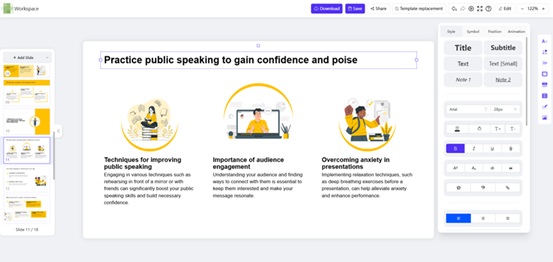
Key Features of WorkPPT AI
- One-Click AI-Powered Creation: Generate well-structured, polished slides in minutes with just one click. WorkPPT AI saves you hours of manual work by instantly creating clear and professionally designed presentations.
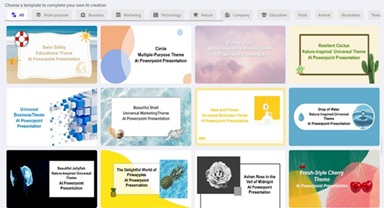
- Professional & Stunning Templates: Access a library of over 5,000 templates, tailored for different industries and presentation styles. From corporate reports to creative pitches, WorkPPT ensures every slide deck is beautifully designed with intelligent layouts, placeholder visuals, and consistent formatting.
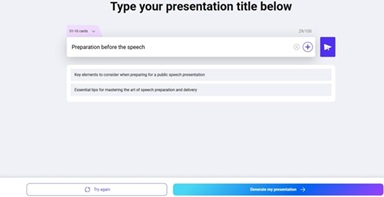
- Versatile Input & Workflow Options: WorkPPT adapts to your workflow by allowing you to generate slides from a simple title, expand bullet points, or upload existing documents (Word, PDF, PPTX). You can preview AI-generated outlines, make adjustments, and create slides that fit your needs.
- Editing Flexibility: Once your slides are created, you can easily customize them. The in-browser editor lets you adjust text, swap images, fine-tune fonts, and add animations while maintaining brand consistency and personal creativity.
- Exporting & Sharing Options: Presentations can be exported in multiple formats, including PPTX, PDF, PNG, or JPG, and shared via links or printed for offline use.
- Multi-Language Support: WorkPPT offers a user-friendly interface in multiple languages, serving global users.
- AI Productivity Tools: Beyond presentations, WorkPPT includes an AI Summarizer, PDF tools, an AI Chat Assistant, and Mind Map Generator, making it an all-in-one platform for content creation and organization..
Conclusion
Both Google Slides and PowerPoint have their merits, and the decision ultimately depends on your specific needs: Google Slides is perfect for users who need a free, simple, and collaborative tool with basic design features. PowerPoint is ideal for users who require advanced design options and offline functionality.
For those seeking a tool that combines the best of both worlds, WorkPPT offers an innovative solution with AI-powered design, enhanced collaboration, and seamless cross-platform compatibility. Whether you are working on a solo project or collaborating with a team, WorkPPT can help you create stunning presentations more efficiently and with less effort.