
10.0.0.0.1 Not Working? Troubleshoot and Fix Router Login Issues Now
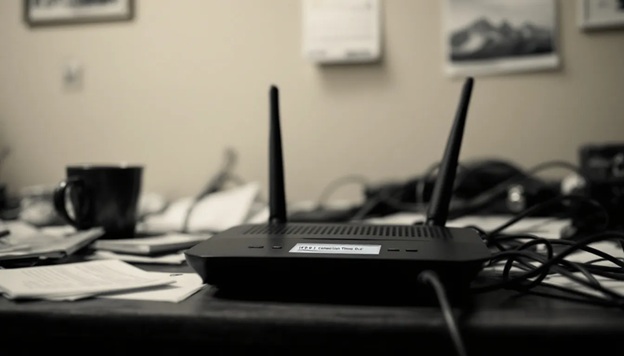
Facing issues with accessing your router through 10.0.0.0.1? You’re likely dealing with an incorrect IP address, login problem, or a network glitch. This article breaks down the common reasons for ‘10.0.0.0.1 not working’ and provides easy solutions.
Key Takeaways
- Common login issues for 10.0.0.1 include incorrect IP entry, IP conflicts, and wrong credentials.
- To resolve access problems, users should verify their router’s default gateway, restart the router, and clear their browser cache.
- For persistent issues, consider resetting the router, checking for firmware updates, and potentially contacting ISP support.
Common Reasons Why 10.0.0.0.1 Isn't Working
Accessing 10.0.0.1 can be problematic for various reasons, such as erroneously entering the IP address as 10.0.0.0.1 instead of the correct 10.0.0.1, which does not direct you to the intended page.
Challenges may also emerge when there is an overlap in the IP range used by both a modem and a router, creating conflicts that prevent access to your router’s interface.
Another common hurdle involves confusion between login details. Mistaking the WiFi password for that of the router admin could block entry into both router and wireless settings—a situation some users find themselves struggling to rectify.
It should be noted that not every model uses 10.0.
How to Verify Your Router's Default Gateway Address
Firstly, you might want to verify that you are attempting to access the appropriate IP address. For those of you on Windows, launch Command Prompt and input:
‘ipconfig | findstr /i “Gateway”‘
which will surely show your network’s default gateway address—the one utilized for router login.
If by any chance using Linux, open Terminal and key in
‘ip route | default’
to determine the correct default gateway.
If you’re on Mac OS X, typing ‘netstat -nr | grep default’ into Terminal yields similar results by displaying the required information.
These steps ensure that you identify and use the proper IP address intended for accessing your router.
To confirm that you have identified the accurate private IP address employed by your network—thereby preventing any hassle associated with trying to log onto an incorrect address—it is advisable to review your device’s network settings.
Fixing Login Issues with Simple Steps
To resolve login problems, ensure you have the correct IP address. Should issues persist, try rebooting your router, purging your browser’s cache, and attempting to access the login page from various devices.
These steps are designed to tackle typical hurdles that could obstruct entry to your router’s login interface.
Restarting Your Router
Restarting your router can often clear up those pesky temporary glitches and connectivity problems which you might have. Just about any minor network issue can usually be resolved by unplugging your router for about 10 seconds, then plugging it back in. That simple reboot can be a life-saver.
To keep your network running at its best—and prevent those issues from arising in the first place—you should get into the habit of regularly restarting your router, as advised by The Router Help Support. That way, you can ensure your WiFi stays up and running without a hitch.
Why not clear your browser cache
Clearing out your browser cache can also help you load your router's admin page more smoothly. (And that, in turn, can help you access it in the first place.) Head into your browser's settings menu (Firefox or whatever you use) and clear out both the cache and cookies. That forces the browser to grab the latest version of the page-you might find that resolves any loading issues you're seeing.
If the problem is with your device, not the network, you might not realize that until you try accessing your router from another device. If you can get into the router settings from a different device but not your own, that's a pretty good sign the issue is with your device.
Try using a different laptop, smartphone, or tablet, or other devices to identify if the issue is device connected or network-related, providing a clearer path to resolution.
Ensuring Correct IP Address Format
To prevent the common error of misentering an IP address, heed these suggestions:
- Input http://10.0.0.1 straight into your web browser’s address bar.
- Refrain from including any spaces.
- Eschew prefixing the IP with ‘www.’
- Take care to distinguish between the numeral ‘0’ and the letter ‘O’.
Adhering to the proper format for reaching a router’s settings page is critical. Errors can result in navigating to incorrect pages, causing unnecessary irritation. Precise entry of the IP facilitates seamless access to its login interface.
Resetting Your Router to Factory Settings
If all else fails, resetting your router to factory settings can be a last resort. This reverts all custom settings, including SSID, password, and guest networks, back to defaults. Hold down the reset button for about 10-15 seconds.
A factory reset will disconnect all devices from the WiFi network, requiring reconfiguration afterward. This step can resolve persistent issues, but should be used when other methods have failed.
Checking for Firmware Updates
It’s essential to keep your router’s firmware up-to-date to ensure a secure and smooth-running network for your computer. You can usually perform firmware checks via the System or Management section found within the admin panel of many routers. To maintain peak performance, make it a practice to manually review and apply updates every two or three months.
For added ease, some routers come with an auto-update functionality. Once you’ve updated your device, it might be beneficial to reset it back to its factory default settings in order to achieve the best possible performance.
Changing Your Router's Admin Password
Securing your router involves updating the default admin password. Ensure that this new password is robust, comprising a minimum of eight characters with a mix of numbers, upper and lower case letters, as well as symbols.
For improved security measures within your network settings:
- Modify both the default username and password to obstruct unwarranted entry.
- Regularly refresh your access credentials by changing the password.
- Deactivate WPS if it’s not essential because it could represent a vulnerability in security.
Advanced Troubleshooting Techniques
It's not a bad idea to consider using sophisticated strategies such as configuring a static IP, deactivating firewalls just for a short period to check and see if it would make a difference, and seeking assistance from your Internet Service Provider (ISP) - as trivial as it may sound. These approaches are designed to tackle particular problems that could hinder access to your router, including scenarios where access has been restricted.
Using Static IP Configuration
Maintaining a steady connection to your router can be achieved by configuring a static IP address on your device. The necessary steps involve:
- Navigating to the network settings of your device.
- Inputting an IP address manually.
- Providing the appropriate subnet mask information.
- Specifying the correct default gateway.
By taking these measures, you avoid complications that may arise from dynamic changes in IP addresses.
To prevent any issues with connectivity and network clashes, it is crucial to ensure all entered information is accurate. Assigning a static IP enhances consistency in accessing your router and ensures top-notch performance within private networks sharing the same infrastructure.
Disabling Firewall Temporarily
If you are unable to reach your router’s login page, the firewall may be preventing access. To determine if this is the case:
- Disable your firewall momentarily.
- Attempt to log in to your router’s page.
- If successful without the firewall, reactivate it immediately for network protection.
Be careful when performing this step because turning off your firewall temporarily increases vulnerability to potential security threats. It can serve as an effective method for diagnosing problems with accessing the login page.
Contacting ISP Support
If all else fails, contact your ISP for help. They can resolve complex network issues and provide detailed information on accessing your Cisco router via the entire internet.
Your ISP can often diagnose and resolve issues beyond your control.