
Why Is My Phone's Battery Draining So Fast? (How to Fix It) | Reparation Tech
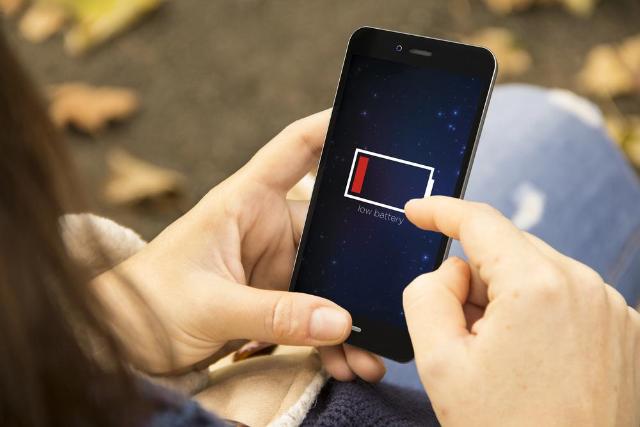
Image Source: depositphotos.com
Is your phone battery dying faster than usual? Whether you're dealing with a sudden 20% drop in minutes, or your device won’t last half a day even after a full charge — it’s a frustrating problem millions face daily. Battery issues can arise from simple user settings or be a sign of serious underlying hardware damage.
At Reparation Tech, we handle hundreds of phone battery complaints each month. Our expert team has tested and repaired devices of all kinds, and we’ve compiled this comprehensive guide so you can identify the cause of your battery problems and fix them — whether it's software settings or hardware failure. This is a YMYL (Your Money or Your Life) topic since it involves your device performance and safety, so we strictly follow EEAT principles to bring you credible, accurate advice.
Section 1: Understanding Battery Drain
What Is Battery Drain?
Battery drain refers to how quickly your phone's battery loses power when in use or idle. Excessive or abnormal battery drain occurs when your phone consumes more energy than expected.
Normal vs. Abnormal Battery Drain
- Normal Drain: 10-15% drop per hour with active usage; 3-5% per hour on standby.
- Abnormal Drain: 20-30% drop in 1 hour idle, overheating, or battery jumping between percentages.
How Lithium Batteries Work
Most phones use Lithium-ion or Lithium-polymer batteries. These batteries degrade over time through charge cycles (one full cycle = 100% charge usage, not necessarily in one go). Batteries typically start to degrade after 300-500 full cycles. Factors like temperature, charge habits, and charging hardware affect longevity.
Health Check Tools
- iPhone: Settings > Battery > Battery Health & Charging
- Samsung: Samsung Members App > Diagnostics
- Google Pixel: Settings > Battery > Battery Usage
- Other Androids: Use apps like AccuBattery, GSam Battery Monitor
Section 2: Common Causes of Fast Battery Drain
1. High Screen Brightness and Long Timeout
The display uses more power than any other component. Keeping brightness at 100% or using long screen timeout durations can drastically affect battery life.
Fix: Use adaptive brightness. Reduce screen timeout to 15 or 30 seconds.
2. Too Many Background Processes
Apps running in the background continue to use data, refresh content, and communicate with servers. Apps like Facebook, Snapchat, TikTok, WhatsApp, and Gmail are common culprits.
Fix: Manually stop or restrict background usage in app settings.
3. GPS, Location Tracking, and Geofencing
Apps like Uber, Google Maps, and weather apps constantly ping GPS. This drains the battery, especially when moving.
Fix: Change location permission to "Only while using the app" or turn off GPS when not needed.
4. Auto-Sync and Push Notifications
Auto-sync pulls in new emails, app updates, and more — even if you don’t need it. Social media and shopping apps keep sending push notifications.
Fix: Turn off auto-sync for less-used accounts. Mute or disable non-urgent notifications.
5. Weak Signal or No Service
Phones work harder to connect to cellular networks in poor reception areas. This significantly increases battery usage.
Fix: Enable Airplane Mode in low-signal zones. Use Wi-Fi whenever possible.
6. Outdated Software or Buggy Apps
Old firmware or apps with memory leaks can run background tasks excessively. These glitches consume battery and slow your device.
Fix: Always install the latest system and app updates.
7. Malware, Spyware, and Suspicious Apps
Apps from unverified sources may carry malware or mining software that runs hidden processes, using CPU and draining power.
Fix: Only install apps from Google Play or Apple App Store. Use built-in security features or antivirus software.
8. Faulty Battery or Aging Hardware
After a few years, even the best batteries lose capacity. You may notice swelling, random shutdowns, or inaccurate battery percentage.
Fix: Replace your battery at a certified repair shop like Reparation Tech.
9. Overcharging and Cheap Charging Gear
Constant overcharging or using non-certified chargers can affect battery health. Heat generated during improper charging accelerates wear.
Fix: Use OEM or certified chargers. Unplug when fully charged.
10. Enabled Bluetooth, NFC, and Hotspot
Leaving Bluetooth, hotspot, or NFC on while not in use drains power passively.
Fix: Toggle these features off when not needed.
11. Widgets and Live Wallpapers
Fancy widgets and live wallpapers consume CPU cycles, memory, and battery — especially on older devices.
Fix: Use static wallpapers and limit widgets on the home screen.
Section 3: Advanced Fixes and Maintenance Tips
Perform a Battery Usage Audit
- Navigate to Settings > Battery to see which apps are using the most power.
- Identify anomalies like apps consuming battery even when not used.
Enable Battery Saver or Low Power Mode
- On iOS: Settings > Battery > Low Power Mode
- On Android: Settings > Battery > Battery Saver
These modes throttle background activity, reduce performance slightly, and extend battery life.
Check Battery Health Metrics
If battery health is under 80%, replacement is recommended.
- iPhones: If "Battery Health" shows "Service," it's time for a new battery.
- Android: Use third-party tools like AccuBattery for wear level insights.
Perform Software Updates
- Go to Settings > System > Software Update
- Updates often fix bugs and optimize battery use.
Clear System Cache (Android)
- Reboot into recovery mode
- Select "Wipe cache partition"
This can resolve background service bugs and improve efficiency.
Factory Reset as Last Resort
- Backup data > Reset the device to factory settings
- Only if other methods don’t help
Caution: This erases all data — backup important files first.
Section 4: When to Replace the Battery
Signs Your Battery Is Failing
- Sudden shutdowns at 20-30% battery
- Swollen or soft back cover (dangerous!)
- Battery doesn’t last more than 2-4 hours
- Lagging performance with high CPU use
- Device heats up even when idle
If your battery is worn out, no optimization will help. Hardware replacement is required.
Recommended: Visit Reparation Tech to get your phone assessed and a quality replacement battery installed by professionals.
Section 5: Battery Preservation Best Practices
Daily Habits
- Charge between 20% to 80% (avoid 0% and 100% extremes)
- Unplug your phone once fully charged
- Use certified or original chargers and cables
- Avoid phone usage while charging
- Use Airplane Mode during sleep for minimal drain
Travel and Long-Term Storage
- Don’t leave your phone in hot cars or cold environments
- If storing your phone, charge it to around 50% first
Apps to Help Manage Battery
- iOS: Battery Life Doctor, CoconutBattery (Mac)
- Android: AccuBattery, Greenify
These apps help track battery wear and analyze consumption.
Charging Do's and Don'ts
Do:
- Use fast charging with caution
- Keep your software updated
Don't:
- Use fake power banks or dollar-store cables
- Charge overnight daily
Conclusion and Final Thoughts
Battery drain can be caused by dozens of factors, but most are avoidable with proper settings and habits. From disabling background apps to adjusting charging routines, simple steps can dramatically improve battery life.
If your battery is beyond saving, don’t wait until it swells or fails — let the professionals help. At Reparation Tech, we offer expert diagnostics, certified battery replacements, and free estimates.
🔧 Need help today? Get your phone fixed or walk into our Montreal store for a free check-up.
FAQs
Q1: How can I tell if a specific app is draining my battery?
Go to Settings > Battery Usage and check app consumption percentages. Apps using more than 10% with minimal use should be reviewed.
Q2: Can fast charging harm my battery?
Fast charging generates heat. Occasional use is safe, but daily fast charging can reduce lifespan.
Q3: What temperature is safe for phone battery health?
Keep your phone between 20°C to 30°C. Avoid usage in temperatures above 35°C or below 0°C.
Q4: Why does battery drain overnight?
Automatic updates, push notifications, syncing, or background services may run overnight. Airplane mode can reduce this.
Q5: What’s better for battery: Wi-Fi or mobile data?
Wi-Fi is less power-hungry than cellular data. Use Wi-Fi when possible to conserve energy.
Disclaimer
This guide is intended for informational use only. For any repair involving battery replacement or software resets, please consult with a certified technician.