
The Ultimate Guide to Using Text to Speech AI in Videos
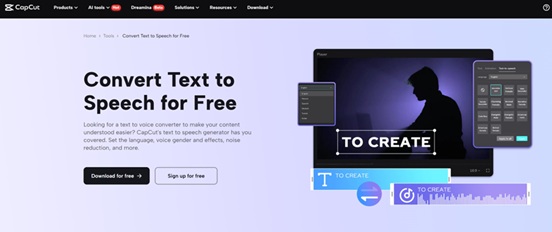
In today’s world, creating engaging videos is easier than ever, thanks to modern technology. One tool that has become very popular is text to speech AI. This powerful technology helps turn written text into spoken words, making it perfect for adding voiceovers to videos. Whether you’re creating educational videos, tutorials, or social media content, text to speech AI can save you time and effort, while still providing a professional sound.
In this guide, we’ll take you through the basics of text to speech AI, how it works, and how it can help you create better videos. We’ll also cover some helpful tips on using AI video upscaler and other tools to improve the quality of your videos. Plus, we’ll walk you through the easy steps to use CapCut’s text to speech AI feature to create stunning videos quickly.
What is Text to Speech AI and How Does It Work?
Text to speech AI is a type of artificial intelligence that converts written text into spoken words. It’s like having a digital voiceover artist at your fingertips. You simply type out the words, and the AI reads them aloud in a natural-sounding voice.
This technology is very helpful for content creators, educators, businesses, and anyone who needs voiceovers for their videos. Instead of recording your own voice or hiring a professional voice actor, you can use text to speech AI to quickly generate a clear, lifelike narration. These AI voices can be customized with different accents, speeds, and tones to match the style of your video.
Why Should You Use Text to Speech AI in Videos?
Using text to speech AI in videos offers many benefits. First, it saves a lot of time. Rather than spending hours recording a voiceover, you can simply type your script and let the AI do the work. This is especially helpful when you need to create lots of videos quickly, like for online courses or marketing campaigns.
Second, text to speech AI can make your videos more accessible. It’s a great solution for people who have visual impairments or other disabilities. The AI can read your text aloud, making your content more inclusive for everyone.
Another benefit is that text to speech AI can help you create videos in different languages. Many AI tools offer various language options, so you can reach a global audience. You can also adjust the tone and pace of the voice to make it more engaging for your viewers. Moreover, you can also use CapCut's AI voice generator to create your video in new tones and voices.
Enhance Your Video Quality with AI Video Upscaler
While text to speech AI can take care of your video’s narration, there’s another important factor to consider: video quality. Many videos online are shot with varying levels of resolution, and sometimes older videos need a little improvement. That’s where an AI video upscaler comes in.
An AI video upscaler uses advanced technology to improve the resolution and quality of your videos. It takes low-resolution videos and makes them clearer and sharper, without losing detail. This is especially helpful if you have older content or videos shot in poor lighting. The AI video upscaler enhances your visuals, making them look more professional and polished.
By combining text to speech AI with an AI video upscaler, you can make your videos not only sound great but also look amazing. Imagine having a well-spoken voiceover paired with clear, high-quality visuals. This combination can take your content to the next level and make it more appealing to your audience.
How to Use CapCut’s Text to Speech AI in 3 Simple Steps
If you’re new to video creation or just want an easy-to-use tool, CapCut offers a powerful text to speech AI feature that makes adding voiceovers to your videos super simple. Follow these three steps to use CapCut’s text to speech AI on the desktop version:
-
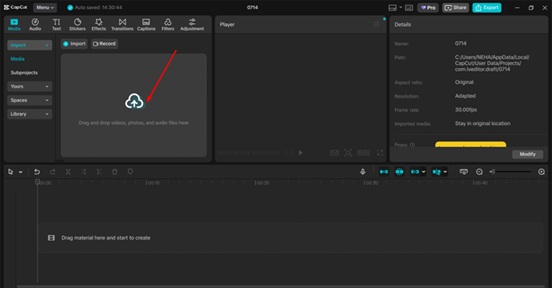
Import Video
First, you need to import your video into CapCut. Open the app and click on the "Create Project" button. Choose the video file you want to add voiceover to from your computer. Once your video is uploaded, it will appear on the editing timeline.
-
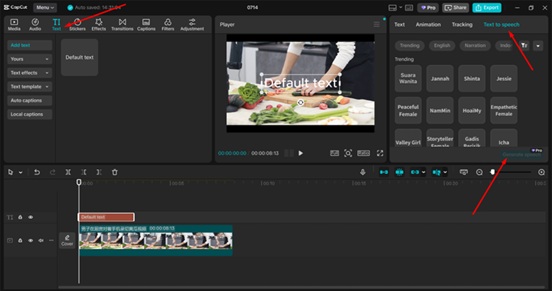
Use Text to Speech AI
Now, you’re ready to add the voiceover. Click on the "Text" button in the toolbar. Type the text you want to be read aloud in the Text box. Then, click on the "Text to speech" option. From there, you can select the voice style, language, and adjust the speed and tone. CapCut will automatically generate the voiceover for you, and you can preview it to make sure it fits well with your video.
-
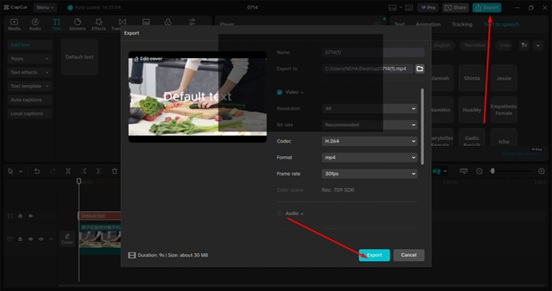
Export Video
Once you’re happy with the voiceover, click the Export button in the top-right corner of the screen. You can select the resolution for your video, and once everything is set, CapCut will process your video with the AI-generated voice. Your video will be ready to share in just a few minutes.
CapCut’s text to speech AI feature is a great way to add narration to your videos without the hassle of recording your own voice. The process is fast, easy, and doesn’t require any special skills.
Tips for Getting the Most Out of Text to Speech AI in Your Videos
While text to speech AI is a powerful tool, there are a few tips to keep in mind to make sure your videos sound as good as possible:
-
Keep Your Text Clear and Simple: The clearer your text, the better the AI will sound. Try to avoid long or complicated sentences that might confuse AI.
-
Choose the Right Voice: Different voices can set different tones for your video. Make sure the voice matches the style of your content. For example, a calm, friendly voice might be perfect for educational videos, while a more formal voice might suit corporate videos.
-
Combine with Engaging Visuals: Remember, text to speech AI only takes care of the audio. To make your video even more engaging, add visuals like images, animations, or slides. These will complement the voiceover and keep your viewers interested.
Conclusion
In today’s fast-paced world, content creation has become easier and more efficient thanks to powerful tools like text to speech AI. Whether you’re making videos for education, marketing, or entertainment, text to speech AI can help you create professional-sounding voiceovers quickly and without any special equipment. Combine it with an AI video upscaler to improve the visual quality of your content, and you’ll have videos that are both clear and engaging.
CapCut’s text to speech AI feature makes the process even easier. With just three simple steps — importing your video, using the AI voice, and exporting your project — you can create high-quality content in no time. So, why wait? Try CapCut today and take your videos to the next level.