
How to Get Voice Chat on Roblox and Change Your Voice in 2025
Roblox is a creative universe where millions of players build, explore, and hang out in user-generated experiences every day. While text chat is fun, nothing beats the immersion and spontaneity of talking directly to your friends and fellow players. This is where Roblox Voice Chat, officially known as Spatial Voice, comes into play. It adds a whole new dimension to roleplaying, teamwork, and social games.
However, enabling the feature is just the first step. For those who want to take their roleplay, pranks, or live streaming to the next level, a real-time voice changer is essential. Imagine sounding like a booming robot in an action game or a mischievous cartoon character in a comedy experience.
This comprehensive guide will walk you through the simple steps to enable Spatial Voice on your account and then introduce you to the best voice-changing software on the market, with EaseUS VoiceWave standing out as the top selection for its power, ease of use, and professional-grade performance.
Part 1: How to Get Voice Chat (Spatial Voice) on Roblox
Roblox has strict safety measures, which means not everyone can access the voice chat feature instantly. You must meet two main criteria: be over 13 years old and verify your age using a government-issued ID.
Step 1: Verify Your Age to Unlock Voice Chat
The minimum age requirement for Spatial Voice is 13 years old. To prove you meet this requirement, you must complete the age verification process:
- Log in to your Roblox account on the web browser or mobile app.
- Navigate to Settings (gear icon) and select the Account Info tab.
- Look for your birth date and click the "Verify My Age" button.
- A new window will open, prompting you to begin the process. You will need a valid photo ID (like a driver's license, passport, or resident card) and a mobile device with a camera.
- Roblox will display a QR code. Scan this code with your mobile device to continue the process on your phone.
- Follow the prompts to upload clear images of your ID and take a quick selfie to confirm you are the owner of the document.
- Once submitted, the verification process usually takes just a few minutes. Upon success, your account is now eligible for Spatial Voice.
Step 2: Enabling the Voice Chat Feature
After successful age verification, you can turn on the feature within your account settings:
- In your Roblox settings, go to the Privacy tab.
- Under the "Privacy" settings, look for the "Enable Voice Chat" or "Spatial Voice" toggle switch.
- Click the toggle to turn the feature ON.
That's it! Now, when you join any Roblox experience that supports Spatial Voice, you will see a small microphone icon above your avatar. Click it to talk, and your friends will hear your voice in real-time, with sound volume dependent on your distance from them in the game world.
Part 2: Top 4 Voice Changers for Roblox in 2024
Enabling voice chat is great, but to truly stand out, a voice changer is essential. These tools intercept your microphone's audio, instantly apply a filter, and send the modified voice to the game, allowing you to instantly roleplay as a monster, a cartoon character, a celebrity, or change your gender sound.
After thorough testing, we've ranked the best tools available, with our Editor's Choice for 2024 being EaseUS VoiceWave.
Top 1: EaseUS VoiceWave (Editor's Choice)
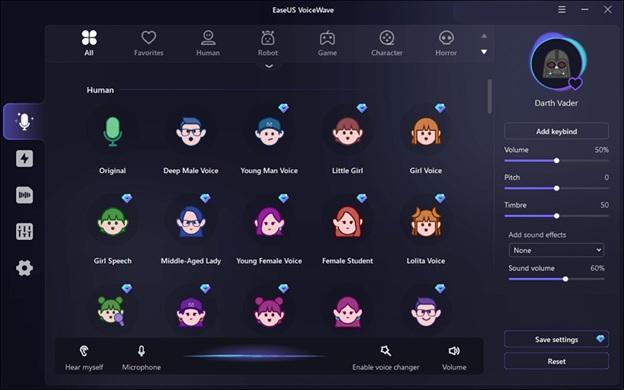
If you are looking for a powerful, professional-grade voice changer that offers unparalleled real-time performance and a massive library of effects, look no further than EaseUS VoiceWave. It is the absolute top selection for Roblox users who demand high-quality, zero-latency voice modification and seamless integration. Key Features that Make VoiceWave the Best:
- Massive Voice Library: Access to over 100 high-quality voice filters, including character voices (like Minions or Spongebob), human voices (male to female, old to young), and fantastical effects (alien, robot, demon).
- Real-Time, Zero-Latency Performance: Designed for gaming, VoiceWave ensures your voice is changed and broadcasted with virtually no delay, which is crucial for fast-paced games and natural conversations.
- Custom Soundboard: Features a built-in soundboard with thousands of preset meme sounds, background effects, and sound clips. You can also upload your own audio files to trigger with a hotkey during your Roblox session.
- Voice Creation Studio: For the ultimate customization, the software allows users to fine-tune pitch, timbre, formant, and reverb to create and save unique, personalized voices.
- Seamless Integration: Works effortlessly with Roblox, Discord, Skype, Zoom, and all major streaming platforms (Twitch, YouTube Gaming).
How to Use EaseUS VoiceWave with Roblox
Setting up VoiceWave to work with Roblox is simple and only takes a minute:
- Download and Install: Visit the official EaseUS VoiceWave website, download the software, and complete the quick installation process on your PC.
- Configure Input/Output: Launch VoiceWave. Within the settings, ensure your physical microphone is selected as the Input Device and your headphones/speakers are selected as the Output Device.
- Choose a Voice: Browse the extensive VoiceBox library. Click on any voice filter (e.g., 'Child,' 'Female,' or 'Darth Vader') to activate it. Speak into your mic—you should hear your altered voice through your headphones.
- Set Virtual Mic: This is the most crucial step. VoiceWave creates a "virtual microphone" on your system.
- In Roblox Settings: Open Roblox on your computer. Go to Settings > Privacy. Under the Microphone Input section, you must select "EaseUS VoiceWave Virtual Audio Device" (the exact name may vary slightly).
- Start the Fun: Join any Spatial Voice-enabled Roblox game. As long as VoiceWave is running and a filter is selected, your voice will automatically be transmitted to other players in your chosen voice. Use your custom hotkeys to trigger soundboard effects mid-game for maximum impact!
Other Recommended Voice Changers
While EaseUS VoiceWave is our top recommendation, several other tools offer solid performance and unique features for the Roblox community.
2. Voicemod
Voicemod is perhaps the most popular voice changer in the gaming space, known for its sleek interface and extensive range of sound effects. It offers daily free voices and a robust Pro version. Its standout feature is the Soundboard, which is constantly updated with trending meme sounds, making it a favorite for content creators and casual gamers alike. However, for a user just starting, the full feature set can be a bit overwhelming, and its free version is more limited than some competitors.
3. Clownfish Voice Changer
Clownfish is a free, system-level voice changer. This means once installed, it affects all applications that use a microphone, including Roblox, Discord, and Steam. It is incredibly lightweight and easy to use, making it ideal for gamers with older systems or those who simply want a no-fuss solution. The downside is that its voice library is much smaller and less sophisticated than paid options like VoiceWave, offering basic effects like Alien, Robot, and Male/Female Pitch.
4. MorphVox Pro
MorphVox Pro is a classic voice changer that focuses on high-quality voice-altering with excellent background noise cancellation. It uses advanced learning algorithms to adapt to your voice, making the altered output sound more realistic and clear. It's especially good for users who want subtle, high-fidelity pitch alterations rather than extreme character voices. Its interface can look a bit dated compared to newer software, but its core audio performance remains top-tier.
Part 3: Frequently Asked Questions (FAQs)
1. Is using a Voice Changer in Roblox allowed?
Yes. Using a third-party voice changer is generally allowed by Roblox's Terms of Service. As long as your altered voice doesn't violate their Community Standards (e.g., used for harassment, offensive content, or abuse), you are safe to use the software for entertainment, roleplay, and fun.
2. Do voice changers work on Roblox Mobile (iOS/Android)?
Currently, most powerful, real-time voice changers are designed for PC and Mac. Roblox's mobile app doesn't typically allow for the system-level virtual microphone input required for these tools to function. You must use a desktop or laptop to utilize software like EaseUS VoiceWave.
3. I verified my age, but I still can't see the voice chat option. What should I do?
If you've verified your age but the option is still missing, ensure your birth date is correctly set to show you are 13+ years old in the Account Info tab. Sometimes, it can take up to 24 hours for the feature to fully roll out to your account after verification. Try logging out and back into your account.
Conclusion
Enabling Roblox Spatial Voice opens up a world of new social possibilities within the platform. By adding a powerful voice changer to your setup, you can transform your presence and unlock endless creativity for roleplaying, streaming, and pranking your friends.
For those who want the ultimate voice changing experience—combining a huge selection of voices, custom sound effects, zero-latency performance, and an easy-to-use interface—EaseUS VoiceWave is the clear winner. Download it today and start sounding like anyone (or anything!) you want in the metaverse.