
How to Convert Word to PowerPoint in AI Word Editor (with Perfect Formatting)
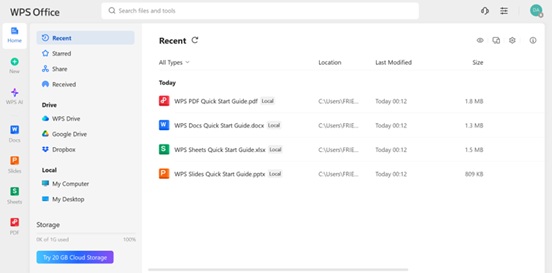
You've completed your lesson plan in WPS Writer, polished your report, or finished your proposal. The next stage, however, is to create a visual presentation from that elegant, content-rich document. Is every slide being duplicated? Thank you, but not. Thankfully, WPS Office preserves formatting, structure, and even graphics when converting a free Word document to a PowerPoint file.
Welcome to this practical tutorial by WPS Office, your one-stop place for learning how to use WPS Office software. You are either a student presenting a project idea or a business executive working on preparing a presentation deck. Either way, this tutorial will guide you through it all within a few clicks.
First of all, why convert Word to PowerPoint?
Converting a Word file into a presentation offers you a creative opportunity in addition to time savings. Rather than simply copying and pasting bullet points, WPS Office assists you in:
-
Repurpose reports: Convert analytical articles into concise briefings suitable for stakeholders.
-
Construct visual aids: Make summaries, proposals, and lessons more interesting.
-
Preserve formatting: Keep headlines, pictures, and text styles the same without completely altering them.
Let's now examine how it operates, platform by platform and step by step.
Step-by-step: convert Word to PowerPoint in WPS Office desktop
The WPS Office desktop version provides the most amount of control when converting a document for maintaining formatting. Here is how to do it without sacrificing your headings, bullet points, or inserted images.
Step 1: Get your Word document ready for slide formatting
Before converting, make sure your free Word document has these basics:
-
The headings (H1, H2, and H3): These are used; they are translated into the titles and subtitles of the slides.
-
Short paragraphs: Keep text blocks short to prevent cluttering slides.
-
Images: Get well-aligned, centered images that work best as slides.
-
Bullet lists: Excellent for slide content. Maintain uniform bullet symbols.
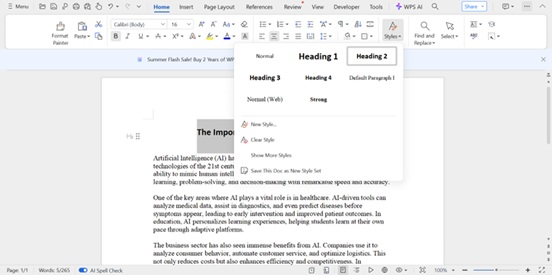
How to do it in WPS Writer:
-
Select your headings and insert Heading 1 (for slide titles).
-
Use Heading 2 for subpoints (which will become bullet items).
-
Save your document after everything's organized.
Step 2: Use WPS Writer's export to presentation feature
WPS Office does not have a single "Convert to PowerPoint" button, but here's a trick:
-
Open WPS Writer with your Word document.
-
Select the Tools tab in the top menu bar.
-
Select Export to PDF to save the structure (optional but advisable).
-
Open WPS Presentation and navigate to Insert > Insert File > Insert PDF.
-
Insert your saved PDF or insert text directly in the Outline view.
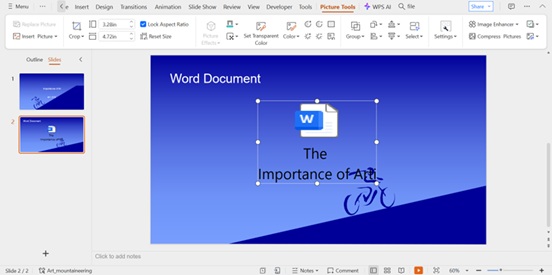
Or, copy content page by page using formatting shortcuts:
-
Use Insert > New Slide > Title and Content
-
Paste your heading in the title field
-
Paste sub-points or images in the content field
It's surprisingly quick when your document is properly styled.
How to convert while maintaining formatting
The secret to a successful Word-to-PPT conversion is maintaining clean formatting. Here's how to maintain cleanliness:
-
Uniform font styles: Limit yourself to one or two fonts. Steer clear of fonts that aren't supported in Presentation mode.
-
Make limited use of tables: Complex tables are not easily transferred. Make them into pictures or bullets.
-
Steer clear of complete paragraphs: Divide lengthy passages into brief phrases or bullets.
-
Photographs: For aesthetically pleasing presentations, include high-definition photographs and center/middle align.
Best applications of Word to PPT conversion
Word to PowerPoint conversion isn't limited to academic slides. Here's where it truly excels:
-
Company briefings: Turn internal reports into sleek presentations.
-
Client decks: Create graphical narratives from proposal reports.
-
Lesson plans: Educators can convert organized lesson schematics into lesson-ready slides.
-
Portfolios: Writers and designers can convert written pitches into engaging presentations.
Need assistance with designing the visual structure following conversion? WPS Presentation offers intelligent layout recommendations, native templates, and transitions to help you polish your deck in a matter of minutes.
Last thoughts + learn more with WPS Office
Converting your free Word document to a presentation is not merely a technical endeavor—it's a story to tell. With adequate heading organization, formatting restraint, and WPS Office's accommodating tools, you can edit from draft to deck with lucidity and panache.
Want more step-by-step tutorials like this one? Check out WPS Office to discover free tutorials on writing, formatting, converting, and presenting on all WPS Office apps. Whether you're editing on desktop or mobile, WPS has the step-by-step walkthroughs you're looking for.
Are you prepared to advance your workflow? Click open WPS Writer now—and let your document shine.
FAQs
1. Is it possible to export Word directly to PPT in WPS?
WPS Office currently doesn't have a one-stop "Export to PowerPoint" button. Still, if you implement proper formatting—such as using Heading 1 for headings and Heading 2 or bullet points for body content on slides—you can format your Word document to be easily convertible to slides. Saving the Word document as a PDF and then adding it to WPS Presentation preserves layout elements.
Want to become a pro at document structure for easier conversions? Go to WPS Office to browse through formatting tutorials and document preparation tips!
2. What if my bullets don't transfer?
At other times, when copying from a Word document or PDF, bullet points won't copy cleanly. That's when using WPS Presentation's Outline View can be a lifesaver. The feature enables you to input titles and bullet content slide by slide while maintaining structure and consistency. It's much faster than retyping by hand and keeps your points clear and visually aligned.
Discover how to utilize Outline View and formatting tips in detail at WPS Office—your key to presentation confidence!
3. Is it possible to convert .doc and .docx files on mobile?
Yes! For both Android and iOS, WPS Office allows you to load .doc or .docx files within the WPS Writer app. To present for presentation purposes, save your file as a PDF first. Next, open the WPS Presentation app, import the PDF, and modify your slide material accordingly. This two-step process is best suited for mobile users who need to convert documents without compromising on formatting.
For tutorials that are mobile-friendly and file handling tips, visit WPS Office and make WPS on the go!
4. Will charts from Word transfer to slides?
During conversion, complex components like embedded charts or graphs might not move smoothly. Charts should ideally be converted to images (in PNG or JPEG format) and manually inserted into your slides to prevent layout or compatibility problems. This guarantees they stay editable in the WPS Presentation design tools and display properly on all devices.
Struggling to convert graphics or want to make your slides better? WPS Office has chart formatting and image optimization tutorials!
5. Can this process be automated?
Currently, WPS Office doesn't have a built-in automation feature to automatically convert Word documents into PowerPoint slides. But if you apply uniform formatting styles to your documents—especially headers, bullet points, and spacing—manually converting them quickly becomes almost automated. This becomes second nature with practice, and you get more design control.
Need to optimize your workflow with intelligent formatting practices? Learn about automation alternatives and productivity hacks at WPS Office!