
Can You Build a Secure Online Store on Your Own - for Free?
It’s a question I hear more and more these days — can you really build a secure, professional online store without spending a fortune… or anything at all? And more importantly, can you do it without relying on SaaS platforms like Shopify or Wix?
As someone who’s been working in the field of web security for years, I’ve always had my doubts when people say “just go SaaS, it’s easier.” Sure, it’s convenient. But are non-technical users truly stuck with rented storefronts and limited control just because they don’t write code?
I don’t think so.
Technology has changed, and setting up your own store is now easier than ever — if you know where to start.
So, what do you actually need to create an online store from scratch?
Let’s break it down step by step.
1. A domain name and hosting
This is the absolute starting point. Your domain (like myshop.com) is your online address, and your hosting is the “plot of land” where your shop will live.
To make your life easier, I strongly recommend buying both from the same hosting provider. Most reputable companies offer bundled packages and domain+hosting management in a single panel. It cuts down the hassle dramatically.
2. Check if your hosting provider offers an auto-installer
Not all hosting plans are equal. If you’re not a developer, look for hosting that includes an Auto Installer (sometimes called "One-Click Installer" or "Softaculous").
This tool lets you install open-source eCommerce platforms like OpenCart, PrestaShop, or WooCommerce with just a few clicks — no FTP uploads, no unpacking archives, no manual database setup. It’s like installing an app on your phone. A few clicks and you’re online.
Installing the Store – Easier Than You Think
If you’ve chosen a hosting provider with an auto-installer, then congratulations — you’re just a few clicks away from having your online store up and running.
Here’s how the process usually works:
- Log into your hosting control panel (usually cPanel or a custom dashboard).
- Look for a section labeled “Auto Installer”, “Apps Installer”, or “Softaculous” — it varies by host.
- Use the built-in search bar and type in OpenCart.
- Once you see the OpenCart icon, click it, then hit “Install”.
That’s it. You’re now entering the installation wizard, which guides you through the setup of your eCommerce system.
?️ Configuration is simple:
- Choose the domain where your store will be installed.
- If you want the shop to show directly on your homepage (yourdomain.com), leave the “directory” field empty.
- Select OpenCart version 3.0.4 – this is currently the most stable and well-supported version.
- Under advanced settings, choose "do not auto-update" – automatic updates can cause compatibility issues with themes and extensions.
- Enable the option to create automatic backups (trust me, you’ll thank yourself later).
Now define your admin account details:
- Choose a username (like admin or storeowner)
- Set a strong password
- Enter your email address
Click “Install” and let the magic happen.
☕ Time for a quick tea break – the installer will do the heavy lifting in the background. Once it’s done, you’ll have a fully working online store waiting for you.
The Store Is Online – But It’s… Ugly. Let’s Fix That.
So your store is live. Technically speaking, you’re ready to sell. But let’s be honest — it doesn’t exactly scream “professional brand.” The default OpenCart theme is functional… but it won’t win any design awards.
Don’t worry — that’s easily fixed.
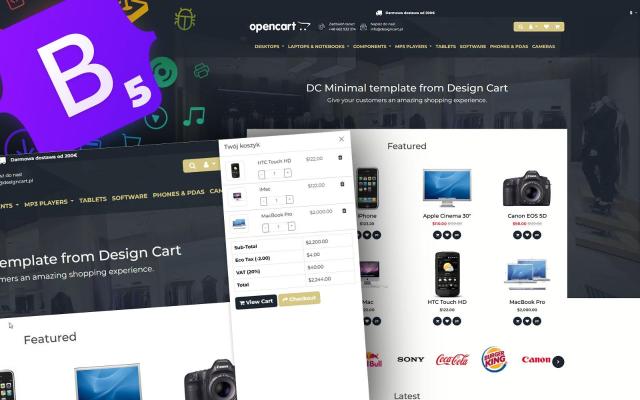
There’s a fantastic free template called DC Minimal from Design Cart and available on the official OpenCart marketplace. Clean, modern, lightweight — and perfect for giving your store an instant upgrade.
Here’s how to install it:
? Step 1: Download and unpack
- Go to the DC Minimal listing on OpenCart Marketplace
- Click Download, then unzip the file on your local drive.
Inside the unpacked folder, you’ll find a file ending in .ocmod.zip. This is the package you’ll be uploading to your store.
? Step 2: Install the template via the admin panel
- Log in to your OpenCart admin panel
- Navigate to: Extensions → Extension Installer
- Click Upload and choose the .ocmod.zip file you just unpacked
The system will handle the upload and extraction automatically.
? Step 3: Refresh the modification cache
Once the file is installed:
- Go to Extensions → Modifications
- Click the blue "Refresh" button in the upper right corner
This ensures your new theme is registered and the system cache is rebuilt.
Let’s Talk Features – What Makes DC Minimal So Good?
Once installed and activated, DC Minimal gives your store a much more polished, modern appearance. But it’s not just about looks — this theme also comes with built-in functionality that rivals many paid templates. Here are some highlights:
? Slide Cart
A sleek cart slides in from the right when a customer adds a product — no page reloads, no confusion.
It even includes plus/minus buttons to adjust quantity directly inside the cart, which is surprisingly rare even in commercial templates.
? Live Search with Autocomplete
Start typing a product name and suggestions appear instantly — complete with image, name, and price.
This significantly improves usability and keeps customers engaged.
? Theme Customization Panel
From the admin panel, go to Extensions → Modules → DC Minimal and you’ll find:
- Color settings (brand colors, button styles, etc.)
- Header contact info (email, phone)
- Editable frontend labels like “Your Cart”
- Main banner management
All without touching code.
?️ Product Carousels or Grids – Your Choice
For modules like "Featured", "Bestsellers", etc., you can switch between carousel layout or classic grid, per module. Total flexibility.
? Customer Panel Redesign
DC Minimal replaces OpenCart’s outdated customer dashboard with a clean, icon-based layout. Orders, returns, address book — all better organized and easier to navigate.
Final Thoughts – Yes, You Can Build Your Own Secure Store (and Make It Look Great)
To answer the original question:
Yes – you can absolutely build a secure, good-looking online store on your own, for free.
Thanks to open-source platforms like OpenCart, and high-quality free resources like the DC Minimal theme, even a non-technical person can:
- Register a domain and hosting
- Install an eCommerce platform in minutes
- Apply a beautiful, functional design
- Launch a professional store with full control
And most importantly: You’ll own it. No subscriptions, no platform lock-ins, no surprises.
Sure, there’s a bit of a learning curve — but with guides like this and smart choices (like choosing hosting with an auto-installer), the process becomes surprisingly accessible.
If you're serious about building your brand and keeping control of your eCommerce future, open source is still the most powerful (and empowering) path you can take.