
Blue Screen of Death (BSOD) on Windows: What Causes It & How to Fix It
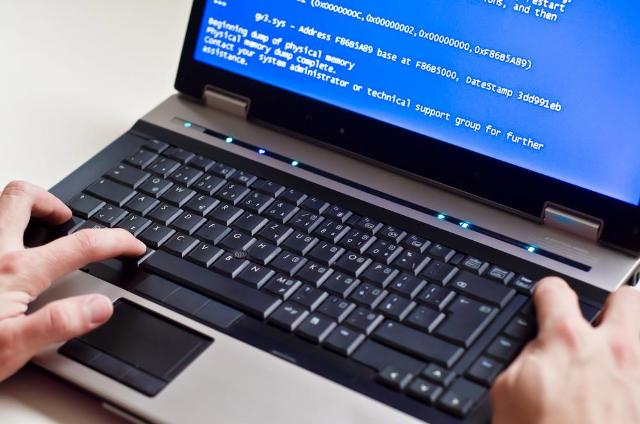
Image Source: depositphotos.com
Intro: The Blue Nightmare
You’re typing. Maybe it’s homework. Maybe it’s that report due tomorrow. Then—bam. The screen goes bright blue. White letters all over it. A second later your computer restarts like nothing happened.
If you’ve been through that, you know the feeling. Heart sinks. Panic kicks in. Did I just lose everything?
That’s the Blue Screen of Death (BSOD). Sounds dramatic, right? Windows didn’t pick that name for nothing. It’s scary because it usually comes out of nowhere. And unless you know why it’s happening, it feels like your PC just gave up on life.
But here’s the truth: a BSOD doesn’t always mean your computer is dead. Sometimes it’s just a driver acting up. Other times, yeah, it’s something serious. The trick is knowing which is which.
At computer repair Charlestown, we see blue screen issues all the time. Some quick fixes. Some major repairs. In this guide, I’ll walk you through the common causes, what they mean, and what you can actually do to fix it.
What Exactly Is a BSOD?
Think of it like this: your computer hits a wall it can’t climb. Instead of trying and making things worse, Windows throws up a blue screen and shuts down.
It’s a defense mechanism. Better to crash than to fry your motherboard.
You’ll usually see a sad face emoji or error codes like:
- CRITICAL_PROCESS_DIED
- MEMORY_MANAGEMENT
- SYSTEM_SERVICE_EXCEPTION
Those codes are clues. They point to the culprit, whether it’s bad memory, corrupt files, or overheating hardware.
Why Does It Happen? 10 Common Causes
1. Bad Hardware
RAM sticks going bad. A dying hard drive. Overheating CPU. Hardware failures are classic BSOD triggers.
Fix: Run memory and disk checks. If tests show errors, replacement is the only way forward.
2. Broken or Outdated Drivers
Drivers are little translators between Windows and your hardware. If they’re corrupted or too old? Blue screen city.
Fix: Update drivers directly from your PC brand’s website. Skip shady “driver booster” apps.
3. Corrupted Windows Files
Power outages, malware, or forced shutdowns can damage system files. When Windows tries to load them—it crashes.
Fix: Open Command Prompt (Admin) → type sfc /scannow. Let it repair.
4. Heat Problems
Your PC gets hot. Too hot. Fans clogged with dust, vents blocked, or you’re gaming on your lap. When temps spike, BSODs appear.
Fix: Keep the system cool. Clean dust, use cooling pads, give your laptop breathing room.
5. Malware Attack
Viruses aren’t just annoying pop-ups. Some corrupt drivers and files, forcing crashes.
Fix: Run a full malware scan. If infections keep coming back, professional cleaning may be needed.
6. Storage Failure
Old hard drives and even SSDs wear out. Bad sectors confuse Windows, which then throws up a BSOD.
Fix: Use chkdsk to scan. If your drive keeps failing, back up your files immediately. Replace it before it dies completely.
7. Software Fighting Software
Two antivirus programs. Or apps that just don’t get along. Conflicts like these push Windows over the edge.
Fix: Uninstall the last program you added before the crashes started. Keep only one antivirus running.
8. Power Supply Issues
Bad PSU in a desktop. Or a faulty charger on a laptop. Unstable power = random crashes.
Fix: Try a new charger (for laptops) or test another PSU (for desktops).
9. Overclocking Gone Wrong
Pushing CPU or GPU beyond safe speeds can cause instability. Blue screens follow.
Fix: Reset BIOS to defaults. Disable overclocking. Stability > speed.
10. Buggy Updates
Yes, even Microsoft makes mistakes. Sometimes a new update causes BSOD loops.
Fix: Roll back the update or wait for the patch. Happens more often than you’d think.
How to Fix a BSOD (Step by Step)
So your screen just went blue. Here’s a roadmap:
- Don’t panic. Restart. Write down the error code.
- Boot into Safe Mode. Stops extra apps from running.
- Update everything. Drivers, Windows, firmware.
- Run system scans. Memory tests, disk scans, virus scans.
- Check hardware. Overheating? Dust? Loose RAM?
- System Restore. Roll back to before the crashes started.
- Reset Windows. Keep files, reinstall the system fresh.
If it still crashes? You’re likely facing hardware failure. That’s not a home fix.
Prevention: Keep BSODs Away
- Update drivers monthly.
- Don’t ignore Windows Updates.
- Keep your machine cool and clean.
- Use one trusted antivirus, not three.
- Back up important files every week.
When DIY Isn’t Enough
Here’s the honest truth. Some BSODs are easy to fix. Others? They need hands-on repair.
Warning signs you need pro help:
- BSOD appears daily.
- You can’t even boot into Safe Mode.
- You hear clicking from the hard drive.
- Laptop overheats within minutes.
That’s when it’s smarter (and safer) to bring it in. At Techy Charlestown, we diagnose BSOD issues from top to bottom—hardware, software, and everything in between. Book a laptop repair Charlestown service or visit us directly at our verified computer repair Charlestown map location.
Conclusion
The Blue Screen of Death looks terrifying, but it’s really just Windows saying: “I had to stop before things got worse.”
Sometimes the fix is simple. Update a driver, clean some dust, uninstall a bad app. Other times, the problem runs deeper.
The good news? A BSOD is rarely the end of your PC. With the right steps—or with help from local repair pros—you can get back to normal without losing your files or your sanity.
FAQs
Q1: Does BSOD mean my computer is broken?
Not always. Many times it’s a driver or software issue.
Q2: Can malware cause blue screens?
Yes, especially when it corrupts system files.
Q3: Is reinstalling Windows the only solution?
No. Try drivers, scans, and Safe Mode before that step.
Q4: How do I know if it’s hardware?
Frequent crashes, overheating, or clicking noises usually point to failing hardware.
Q5: Should I keep using my PC after BSOD?
You can, but repeated crashes risk more damage. Get it checked soon.