
Background Music Optional: When to Keep or Kill the Audio in Short-Form Videos
Image Source: depositphotos.com
Video is king in today's world of content—but not every video reigns supreme within the feed. The key to engagement is often what you don't hear. That is correct. Occasionally, your best short-form videos don't require music, voice-over, or even sound.
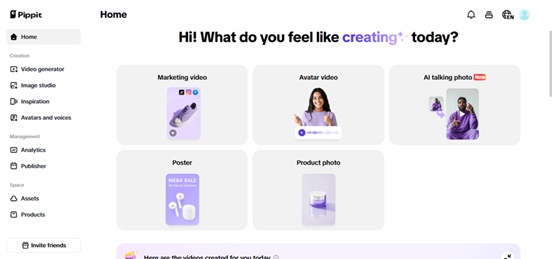
With text to video AI software such as Pippit, you can have scroll-stopping videos simply by copying a product link. No camera team, no fancy editing suite, no recording booth. But once your images are set up, you have a choice that many creators ignore: Do you leave the audio intact or cut it off?
Let’s break down the creative logic behind muting versus musicalizing your video. You’ll learn when silence sells better—and how to master both approaches using Pippit’s editing tools.
The silence effect: more views with less noise
The truth is, most viewers scroll in silence. Social platforms default to muted autoplay, and many users don’t bother turning up the volume. This makes silent videos the standard, not the exception. So why does publishing a video without audio still feel foreign? Because we believe audio equals emotion, or music automatically equals making things more fun. And that may be true sometimes, but it isn't always the case, particularly for certain types of videos like product demoing, carousel ads, mobile-first explainers, or visual storytelling using text or overlays. When you're using text-to-video AI, you're already creating a script in visuals. The action, imagery, and dialogue speak for themselves. Sound is an afterthought, and sometimes even a hindrance
When sound does more harm than good
Let's discuss before we dive into adding music, when it's wiser to just eliminate audio in video. This is particularly relevant when the AI-generated video has default or ambient audio, such as background noise or robotic voiceovers, that add nothing towards clarity. It's also the preferable option when your platform does mute videos automatically, like Instagram or LinkedIn, or where you're going to put motion captions or text on top. If the audio quality is bad, uneven, irrelevant, or the message is entirely visual—like highlighting design or features—then cutting out audio altogether may even improve the viewing experience. In such cases, silence is your greatest filter, removing clutter and allowing the graphics to speak for themselves.
When to add music instead
Now let's reverse it. Sometimes music sets the mood. A timely beat, ambient score, or instrumental loop can lift even the humblest slideshow.
Keep or add background music when:
- You're narrating a story with emotional beats (e.g., brand history, customer story).
- Your images are sparse and require energy.
- You need to align your video with trends on TikTok or Reels.
- The platform is sound-led (similar to YouTube Shorts).
- The content has lifestyle aspects such as travel, fitness, or food.
Music becomes the environment. It establishes tone, dictating pacing, and makes the video,"complete, particularly when there is no voiceover.
Select what fits, then edit like a boss
If your ultimate choice is silence, here's precisely how to remove audio from video with Pippit's easy steps.
Step 1: Upload your video file
First create a video using Pippit. Move to Pippit's Remove Audio software. Drag and drop your video file in, or paste its link directly into the upload field. The software works with .mp4, .mov, and many other formats. Once your video is uploaded, Pippit automatically scans and identifies the audio tracks present.
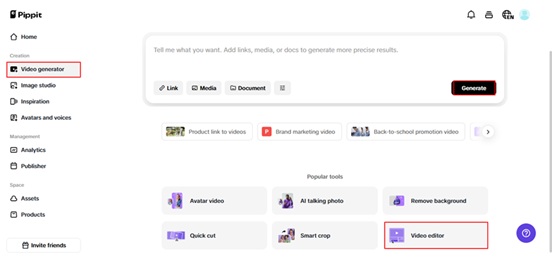
Step 2: Remove the audio track
Tap the Mute button to eliminate all the audio at once. Need more precision? Isolate and eliminate certain sound layers—such as music, background chatter, or AI narration. You'll receive a preview of the silent output so you can ensure it's clean before exporting.
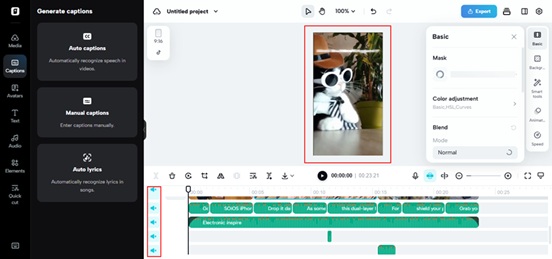
Step 3: Export or add new sound
After muting, you can download your quiet, clean video immediately, or go one step further. Switch over to Pippit's complete video editor to insert music, effects, or a fresh voiceover.
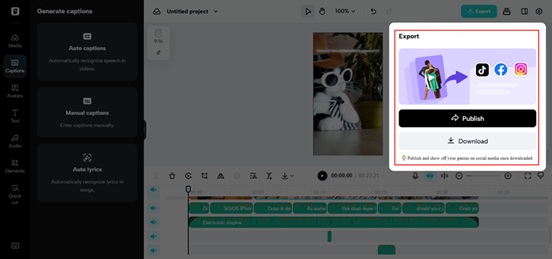
How to make a muted video pop visually
Silence does not equal boredom. Actually, a quiet video leaves you space to think bigger with imagery. Here's the way to pack the punch without an iota of music:
- Add dynamic text to lead the story.
- Employ transitions that capture attention.
- Add branded color highlights to keep the look intact.
- Put in animated call-to-actions such as "Shop Now" or "Swipe Up."
All of these are achievable through Pippit's editor, just stack on effects, drag to organize, and preview before publishing.
Final cut: build, mute, customize with Pippit
Whether you’re launching an ad campaign or building your brand presence, the right audio decision can make or break your video. Due to Pippit's robust capabilities, you won't need to guess, or change tools. Create a video from your product link using text to video, then tweak each frame. Prefer silence? Employ the Remove Audio feature. Need music? Add it with ease within the same dashboard.
Test Pippit today to produce professional-looking videos with or without audio, your story, your terms.